Showing posts with label Tricks. Show all posts

22/09/2014

How to boost Windows 8 performance

Has Windows 8 slowed you down? We’ll get you back to speed! From boot to shutdown and everything in between – let us show you the best tweaks and shortcuts to efficiently use Windows 8.
Experienced Windows 8 users know the tricks that let them bypass the seemingly inefficient Start screen and mouse gestures for getting around the system. With the right tweaks and knowledge, a Windows 8 system doesn’t have to be more inefficient than a Windows 7 system. In fact, a Windows 8 PC might be even faster, as Windows 8 performs better than Windows 7 — especially when it comes to boot times.

Cope With the Missing Start Menu, Boot to Desktop
The biggest issue for new Windows 8 users will be that new Start screen that replaces the Start menu. If you’re used to using the Start menu, this can be disorienting and slow you down. 
Windows 8.1 added a Start button back to the desktop taskbar, but per default it just takes you to the new Start screen. Luckily, Windows 8.1 includes a variety of desktop-integration options that let you boot to the desktop, show your desktop background on the Start screen, display your installed apps immediately when you visit the Start screen, and disable troublesome hot corners. And with a few tweaks, you can reconstruct the Start Menu.
Custom Windows 8.1 Start Menu   5 Ways To Improve Speed & Efficiency In Windows 8

Searching is key to quickly opening apps, settings, and files. Just press the Windows key to access your Start screen and start typing the name of a program to search for it. For example, you can quickly launch Firefox from the desktop by pressing the Windows key, typing firef, and pressing Enter. Windows 8.1 improves things by offering unified search and allowing you to press Windows Key + S to open a search sidebar on the desktop, allowing you to search for programs and quickly launch them without visiting the Start screen.
Pinning applications to your taskbar is also helpful. When an application is running, right-lick it and select the Pin to taskbar option and it will always appear on your taskbar, allowing you to quickly launch it without leaving the desktop.
If you still want a traditional pop-up Start menu, you can also install a third-party Start menu replacement for Windows 8.
1 windows 8 desktop settings 2   5 Ways To Improve Speed & Efficiency In Windows 8

Use the Shortcuts

Windows 8 and 8.1 are packed with shortcuts. This includes keyboard shortcuts, mouse gestures, touchscreen gestures, and even special trackpad edge gestures. Using these shortcuts will help you get around your Windows 8 system much faster.
For example, let’s say you want to open the Settings charm on a PC without a touch screen. You could move your mouse to the upper or lower-right corners of your screen, move the mouse to the center of the right edge, and then click the Settings option when the charms bar pops out. Or, from your keyboard, you could quickly press Windows Key + C and click Settings. If you knew all the shortcuts, you could just press Windows Key + I to open the Settings charm as quickly as possible.
Of course, if any of these gestures are getting in the way — for example, maybe you’re activating the trackpad edge gestures activating by mistake — you can disable many of Windows 8′s gestures. Note that Windows 8.1 also allows you to disable the upper-left and upper-right hot corners from the taskbar’s properties window.
hand on laptop touchpad   5 Ways To Improve Speed & Efficiency In Windows 8

Shut Down Quickly

The “Shut Down” option is hidden on Windows 8, as Microsoft clearly wants you not to shut down your computer. People don’t shut down their iPads, the thinking goes, so why should they shut down their Windows tablets?
Shutting down is still easily possible, if you know where to look. We’ve covered a variety of ways to shut down Windows 8 — from the charms, desktop, Ctrl+Alt+Delete menu, or even the login screen.
As of Windows 8.1, you can also shut down your computer from the power user menu — either right-click in the bottom-left corner of your screen or press Windows Key + X to bring it up and select Shut Down.
windows 8 alt f4 shut down   5 Ways To Improve Speed & Efficiency In Windows 8

Speed Up Boot Time

Windows 8′s boot time is improved over Windows 7′s as a result of the new “hybrid boot” feature, but no boot time will ever be perfect until we get instant-on devices.
Windows 8′s Task Manager is dramatically improved, complete with a built-in startup program manager, so speeding up your Windows boot process by disabling startup programs is faster and easier than ever.
windows 8 task manager startup programs   5 Ways To Improve Speed & Efficiency In Windows 8

Improve Windows 8′s Performance

Ultimately, your computer’s performance is still key. 
Windows 8 PCs are still PCs, so much of the other tips for speeding up your PC also apply. If you have a computer without a solid-state drive, buying and installing an SSD will offer dramatic performance improvements. For most people, this is the most significant upgrade you can do — your slow hard drive is likely your computer’s performance bottleneck.
ssdinstall2   5 Ways To Improve Speed & Efficiency In Windows 8

07/02/2012

How to skip waiting time in 4shared.com

First of all,open the site 4shared.

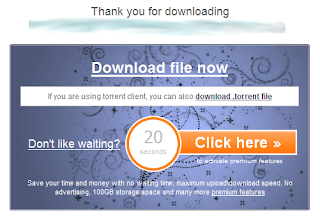
After that, please open the download link from 4shared such as video, music, and others

2.bp.blogspot.com/-aBwqS9OB9ZU/Tlkc30S9VRI/AAAAAAAABTU/EmjxXmi214A/s320/capture1.png

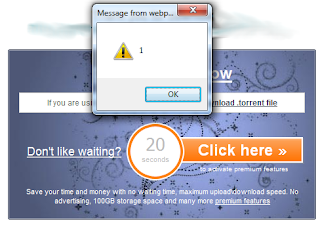
Now copy

javascript:alert%20(c=1)
and paste it at the address bar in your browser and press enter

2.bp.blogspot.com/-8_USYVP_f1A/TlkdAc7Z2vI/AAAAAAAABTY/wbZzti3KR78/s320/capture2.png

It works~ :)

1.bp.blogspot.com/-SNsUPZTaFuc/Tlkdc8fYz0I/AAAAAAAABTc/SkMmS8kdZew/s320/capture3.png

Now you can download any files in 4shared with no waiting time and without any premium account!!

P/S: Please use browser such as Internet Explorer 8 and Mozilla Firefox 3.6 and above if it doesn't work and one more thing you must type the 'javascript' at the address bar if you are using chrome..Happy downloading with 4shared :)

Credit to taufiksm


29/11/2011

Create Fake Facebook Conversations

Are you boring read the new feeds in Facebook?
Booooooooooooriingggggggggggggggg!!!!!


Sure boring sometime right?
Now look at the below pic

Want create this conversation with most famous people in the Earth?
Sure you want!

Now go this site
>>Click Me<<

1)All you need to do is register an account on that site.
But dont u worry about it,it will just take only 5 seconds if u sign in with your Facebook account(it safe 100%)
2)After that,set up a first person who want to post,picture and his/her comments and so on..Try it yourself!
I bet u,it is so easy even sleep at the night is more difficult than doing that..
3)Then,there you go..Create whatever conversations that you want..Just be creative and reliable :D

Good Luck and have a nice day

P/S :Don't forget to Like us on Facebook :)


15/11/2011

Shutdown Your Computer with CMD


Want to Shutdown your computer using timer?
Now you can do it with CMD


List Of Shutdown Command Switches

No SwitchesDisplay information about the shutdown command, same as typing “-?”
-iDisplay a GUI. It must be the first switch
-lLog off the user (This cannot be used on a remote machine: “-m” switch)
-sShutdown the computer
-rRestart the computer
-aCancels a system shutdown already in progress
-fForces running applications to close without warning
-m \\computernameInstruct a remote computer to shutdown (can be used with the restart & abort switches)
-t xxSet a given time for shutdown, in seconds
-c “comment”Shutdown comment (maximum of 127 characters)
-d [u] [p]:xx:yyThe reason code for the shutdown:
u is the user code
p is a planned shutdown code
xx is the major reason code (positive integer less than 256)
yy is the minor reason code (positive integer less than 65536)


How To Use Shutdown Switches:


You don’t have to use them all, but the switches you do use must be in the following order:

shutdown [-i | -l | -s | -r | -a] [-f] [-m \\computername] [-t xx] [-c "comment"] [-d up:xx:yy]


How To:

Open the command prompt: Windows Key + R then type the command below and hit OK:
cmd
This will open the command prompt. Now we can play!


Note: You could type the shutdown command directly into the Run dialog. I don’t advise this. If there is a typo or error, you won’t know. There is no information given!


Shutdown Local Machine

This only takes a couple of keystrokes. Type the code below and hit OK:
shutdown -s
“shutdown” tells the computer what command we want to execute and the “-s” switch tells it what to do, which is to shutdown!


Specify Time

shutdown -s -t 60
Now we have added the “-t” switch and a variable, which in this case is “60″. This number is the number of seconds before the computer is shutdown. A dialog will open and display a count down timer!


Give Us Some Info!

shutdown -s -t 120 -c "You better finish, because I shut you down foo!"
The “-c” switch will allow you to give the user some information for the reason of the shutdown.


Shutdown A Remote Computer

shutdown -s -m \\desktop -t 45
I really like this one! The “-m” switch will allow you to shutdown a remote machine, in this case, a computer named “desktop”. For this to work, you must have administrative access to the computer! To see of you do, hit Windows Key + R then type the computer’s name, i.e.:
\\desktop
If you can connect to it, you will be asked to log into the machine with a user name and password. Once confirmed, a window will open displaying the directories available to you. Now you know you can shut it down remotely.


Cancel Shutdown

Let’s say that you need to cancel a shutdown in progress. Go to the computer in question, hit Windows Key + R then type command below:
shutdown -a
This will abort the shutdown, assuming there is a counter and it hasn’t reached zero yet!

Now,Try it on your PC :)


10/10/2011

Make your Homepage Browser Look Like Windows 8 Metro GUI


Want your browser homepage look like this?Sure want!


Here you go
1)Download this windows8_startpage.rar at http://www.wupload.com/file/358770667
2)Extract all files using winrar
3)Now Set the homepage using directory of the file ..


4)open the folder that have been extracted


COPY THE FILE DIRECTORY! and dont forget to add \index.htm at the last phase (see picture below)


NOW OPEN YOUR BROWSER and select Option(me use chrome)

Click Basics  Tabs<check the Open this page<PASTE THE COPIED DIRECTORY<Close the Option and also tick for Show Home Button at Toolbar

----------------------------------------------------------------------------------------------------------------------------------

FOR FIREFOX USER JUST COPY DIRECTORY TO OPTION<GENERAL<HOMEPAGE


GOT IT?  EASY RIGHT :)


How to enable Administrator Account in windows 7

Currently,Windows 7 does not allow standard user to open with administrator account.

So,i'm gonna teach you how to enable administrator account in windows 7..


1)Type cmd in search box at start menu.

2)Click cmd using Run as administrator by right click.


3)Cmd will appear and type net user administrator /active:yes in cmd and Enter!


4)Administrator account have been activated!

Now you can log off your computer and log in using Adminstrator account :)

-------------------------------------------------------------------------------------------------------------

In Order to turn off the administrator account,you must repeat step 1 and 2.

3)Then,type this  net user administrator /active:no and hit 'Enter'!

4)Complete!Good job buddy :) now you have learn new thing.

*Please take note that Admin currently using Windows 8,but the step still the same with windows 7


09/10/2011

How to google like Google googles?


WHAT IS GOOGLE?


Google Inc. is an American multinational public corporation invested in Internet search, cloud computing, and advertising technologies. Google hosts and develops a number of Internet-based services and products,and generates profit primarily from advertising through its AdWords program. The company was founded by Larry Page and Sergey Brin, often dubbed the "Google Guys", while the two were attending Stanford University as PhD candidates.


Source from Wikipedia.com


So,i'll give you top 20 tips use Google accurately :)


  1. Either/or
    Google normally searches for pages that contain all the words you type in the search box, but if you want pages that have one term or another (or both), use the OR operator -- or use the "|" symbol (pipe symbol) to save you a keystroke. [dumb | little | man]
  2. Quotes
    If you want to search for an exact phrase, use quotes. ["gang kaki download"] will only find that exact phrase. [gang "kaki download"] will find pages that contain the word dumb and the exact phrase "kaki download".
  3. Not
    If you don't want a term or phrase, use the "-" symbol. [-gang kaki download] will return pages that contain "gang" and "kaki" but that don't contain "download".
  4. Similar terms
    Use the "~" symbol to return similar terms. [~gang kaki download -gang] will get you pages that contain "team kaki download" and "group kaki download" but not "gang kaki download".
  5. Wildcard
    The "*" symbol is a wildcard. This is useful if you're trying to find the lyrics to a song, but can't remember the exact lyrics. [can't * me love lyrics] will return the Beatles song you're looking for. It's also useful for finding stuff only in certain domains, such as
    educational information: ["gang kaki download" research *.edu].
  6. Advanced search
    If you can't remember any of these operators, you can always use Google's advanced search.
  7. Definitions
    Use the "define:" operator to get a quick definition. [define:dumb] will give you a whole host of definitions from different sources, with links.
  8. Calculator
    One of the handiest uses of Google, type in a quick calculation in the search box and get an answer. It's faster than calling up your computer's calculator in most cases. Use the +, -, *, / symbols and parentheses to do a simple equation.
  9. Numrange
    This little-known feature searches for a range of numbers. For example, ["best books 2002..2007] will return lists of best books for each of the years from 2002 to 2007 (note the two periods between the two numbers).
  10. Site-specific
    Use the "site:" operator to search only within a certain website. [site:gangkakidownload.blogspot.com cocoon] will search for the term "cocoon" only within this blog.
  11. Backlinks
    The "link:" operator will find pages that link to a specific URL. You can use this not only for a main URL but even to a specific page. Not all links to an URL are listed, however.
  12. Vertical search
    Instead of searching for a term across all pages on the web, search within a specialized field. Google has a number of specific searches, allowing you to search within blogs, news, books, and much more:
  13. Movies
    Use the "movie:" operator to search for a movie title along with either a zip code or U.S. city and state to get a list of movie theaters in the area and show times.
  14. Music
    The "music:" operator returns content related to music only.
  15. Unit converter
    Use Google for a quick conversion, from yards to meters for example, or different currency: [12 meters in yards]
  16. Types of numbers
    Google algorithms can recognize patterns in numbers you enter, so you can search for:
    • Telephone area codes
    • Vehicle ID number (US only)
    • Federal Communications Commission (FCC) equipment numbers (US only)
    • UPC codes
    • Federal Aviation Administration (FAA) airplane registration number (US only)
    • Patent numbers (US only)
    • Even stock quotes (using the stock symbol) or a weather forecast regarding the next five days
  17. File types
    If you just want to search for .PDF files, or Word documents, or Excel spreadsheets, for example, use the "filetype:" operator.
  18. Location of term
    By default, Google searches for your term throughout a web page. But if you just want it to search certain locations, you can use operators such as "inurl:", "intitle:", "intext:", and "inanchor:". Those search for a term only within the URL, the title,
    the body text, and the anchor text (the text used to describe a link).
  19. Cached pages
    Looking for a version of a page the Google stores on its own servers? This can help with outdated or update pages. Use the "cached:" operator.
  20. Answer to life, the universe, and everything
    Search for that phrase, in lower case, and Google will give you the answer.
Source from dumb little man


A title Credit to Faidhi Fatkhurrozi


Twitter Delicious Facebook Digg Stumbleupon Favorites More

 
Design by Free WordPress Themes | Bloggerized by Lasantha - Premium Blogger Themes | Affiliate Network Reviews